Interface Overview
A complete walkthrough of the PaperPilot workspace interface
The PaperPilot workspace is designed for efficient document editing with AI assistance. Let's explore each component.
Main Workspace
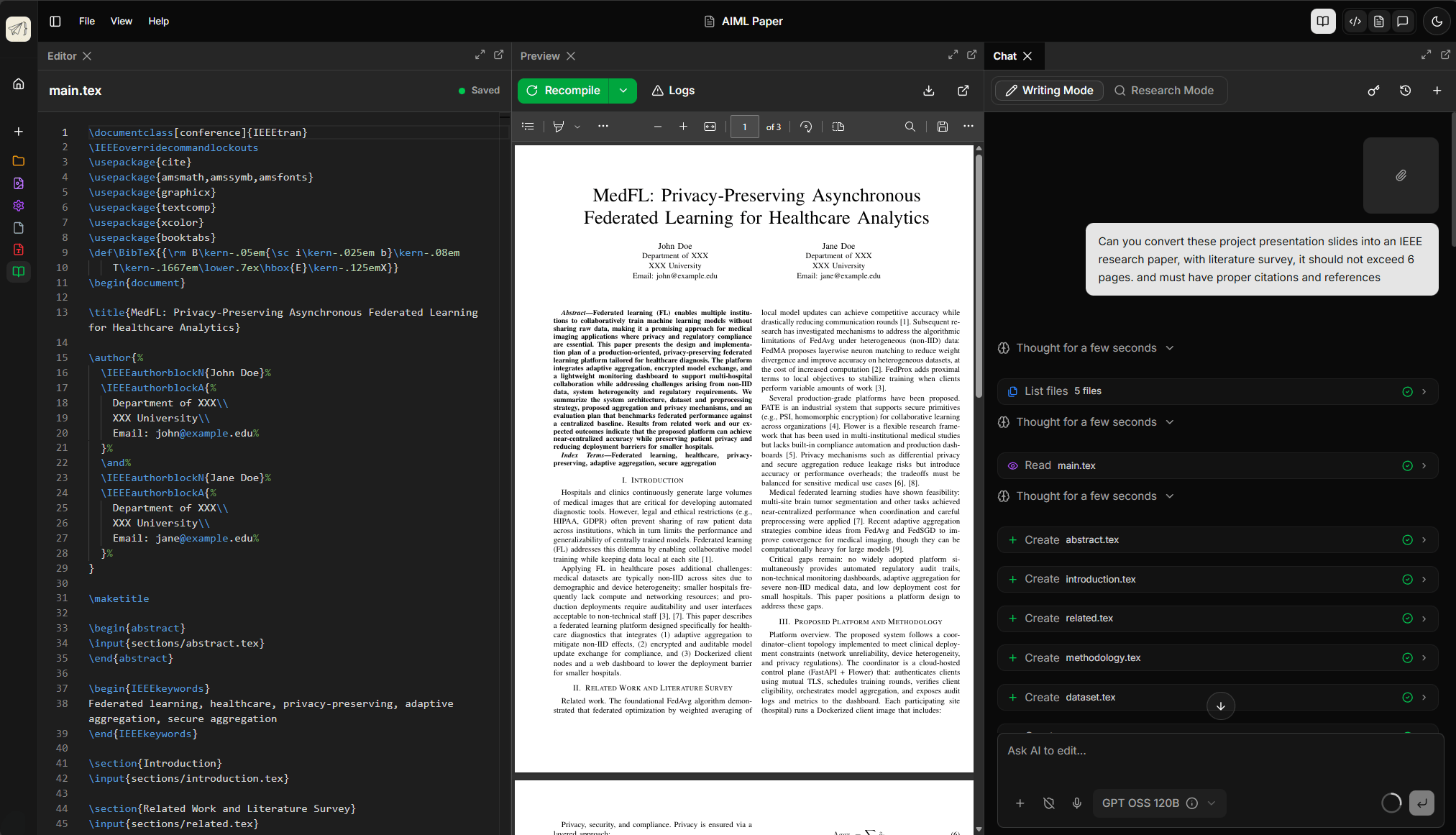
The workspace is divided into several key areas:
1. File Explorer (Left Sidebar)
The file explorer shows your project structure:
- Files & Folders → Click to open files, right-click for context menu
- Quick Actions → Create new files, folders, or import content
- File Icons → Visual indicators for
.tex,.bib, images, and more
2. Editor Panel (Left Panel)
The Monaco-powered editor provides:
- Syntax Highlighting → LaTeX commands are color-coded
- Autocomplete → Suggestions for commands and environments
- Multi-tab Editing → Work on multiple files simultaneously
3. PDF Preview (Middle Panel)
Live preview of your compiled document:
- Auto-refresh → Updates as you type and auto compiles on save
- Zoom Controls → Adjust zoom level for comfortable reading
- Page Navigation → Jump to specific pages
4. AI Chat Panel (Right Panel)
Access the AI assistants from the sidebar:
- Research Agent → For literature search and citations
- Writing Agent → For drafting and editing content
- Conversation History → Previous chats are saved per project
Window Management & Docking
PaperPilot features a flexible window management system that allows you to customize your workspace exactly how you like it.
- Dock Anywhere: Drag any panel tab to the edges of the workspace to dock it. You can create split-screen views (side-by-side or top-and-bottom).
- Stacking: Drop a panel onto the center of another panel to stack them into a single tabbed group.
- Resize: Hover between panels and drag the handles to resize them.
- Toggle Visibility: Use the panel toggle buttons in the top-right of the header to show or hide specialized views.
Layout Options
Choose the layout that fits your current workflow.
Classic Three-Column View
- File explorer on the left
- Editor in the center
- PDF preview or Chat on the right
Ideal for most drafting and editing tasks.
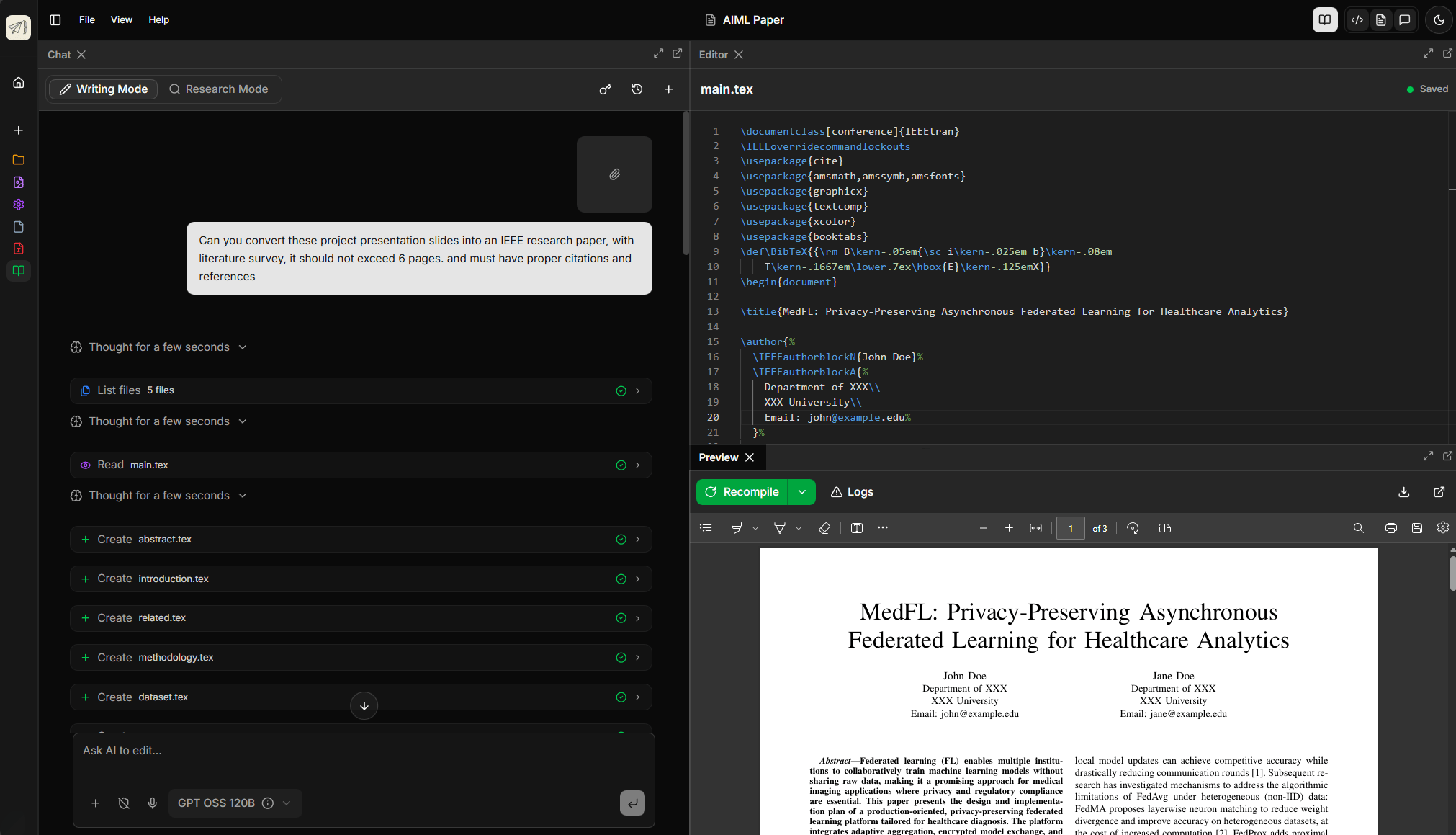
Parallel Workflows
- Stack the Editor and Chat side-by-side
- Keep PDF Preview at the bottom for constant visual feedback
Great for research-heavy writing.
Distraction-Free Writing
- Hide all sidebars and panels
- Center the editor for a clean writing interface
Perfect for deep work sessions.
Application Menu Bar
The top-left menu bar provides comprehensive control over your project and workspace layout.
File Menu
- New File (
Cmd/Ctrl + N): Create a new LaTeX or Bibliography file. - Upload File: Import images or existing documents from your computer.
- Save (
Cmd/Ctrl + S): Manually save the current file (auto-save is also active). - Download PDF: Export the latest compiled version of your document.
- Download Source (
Shift + Cmd/Ctrl + S): Download the entire project as a ZIP file.
View Menu
- Toggle Panels: Quickly show or hide the Editor, PDF Preview, or AI Assistant.
- Layout Presets: Switch between predefined layouts like "Editor Only", "PDF Only", or "All Panels".
Help Menu
- Documentation: Access this guide and other helpful resources.
- Keyboard Shortcuts: View and customize all keyboard bindings.
- LaTeX Help: Quick reference for LaTeX syntax and commands.
Header Bar
The header provides quick access to project-wide actions and workspace controls:
| Element | Function |
|---|---|
| Project Title | Click to rename your project |
| Documentation | Quick access to help and guides |
| Panel Toggles | Icons in the top-right to quickly show/hide Editor, Preview, or AI Chat |
| Theme Toggle | Switch between Light and Dark mode |
Keyboard Shortcuts
Master these shortcuts to control your workspace without leaving the keyboard.
File & Editor Shortcuts
| Shortcut | Action |
|---|---|
Ctrl/Cmd + S | Save current file |
Ctrl/Cmd + N | Create new file |
Ctrl/Cmd + B | Toggle File Sidebar |
Ctrl/Cmd + K | Open inline AI assistant |
Shift + Ctrl/Cmd + S | Download Project Source |
Window Management Toggles
| Shortcut | Action |
|---|---|
Ctrl/Cmd + E | Toggle Editor Panel |
Ctrl/Cmd + P | Toggle Preview Panel |
Ctrl/Cmd + I | Toggle AI Chat Panel |
Customizing Shortcuts
You can change any of these shortcuts to match your preference:
- Go to the Help menu in the top-left menu bar.
- Select Keyboard Shortcuts.
- Shortcut customization is saved to your local device.
Theme Support
PaperPilot supports both light and dark themes:
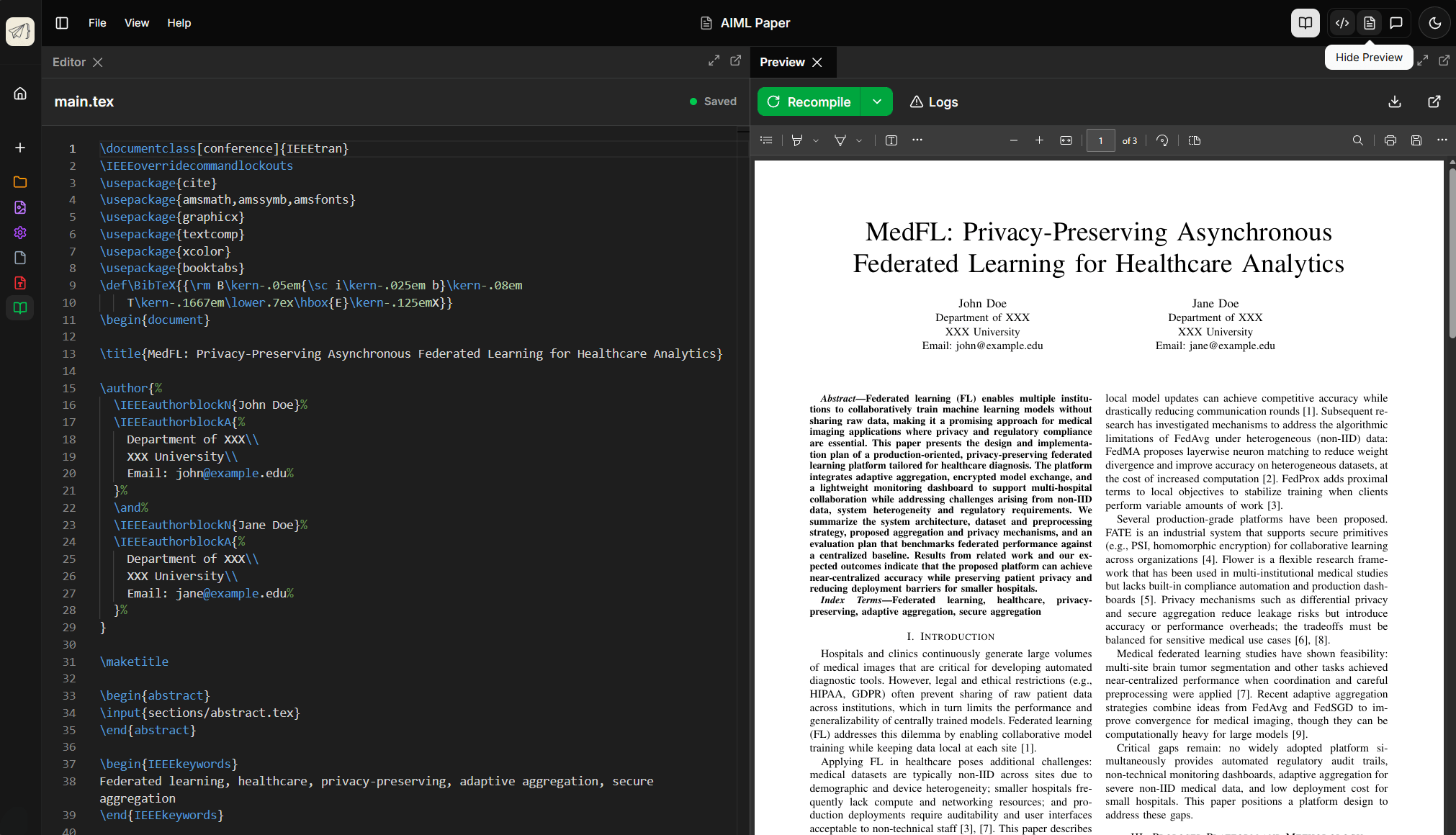 Provides a high-contrast environment that is easy on the eyes during late-night sessions.
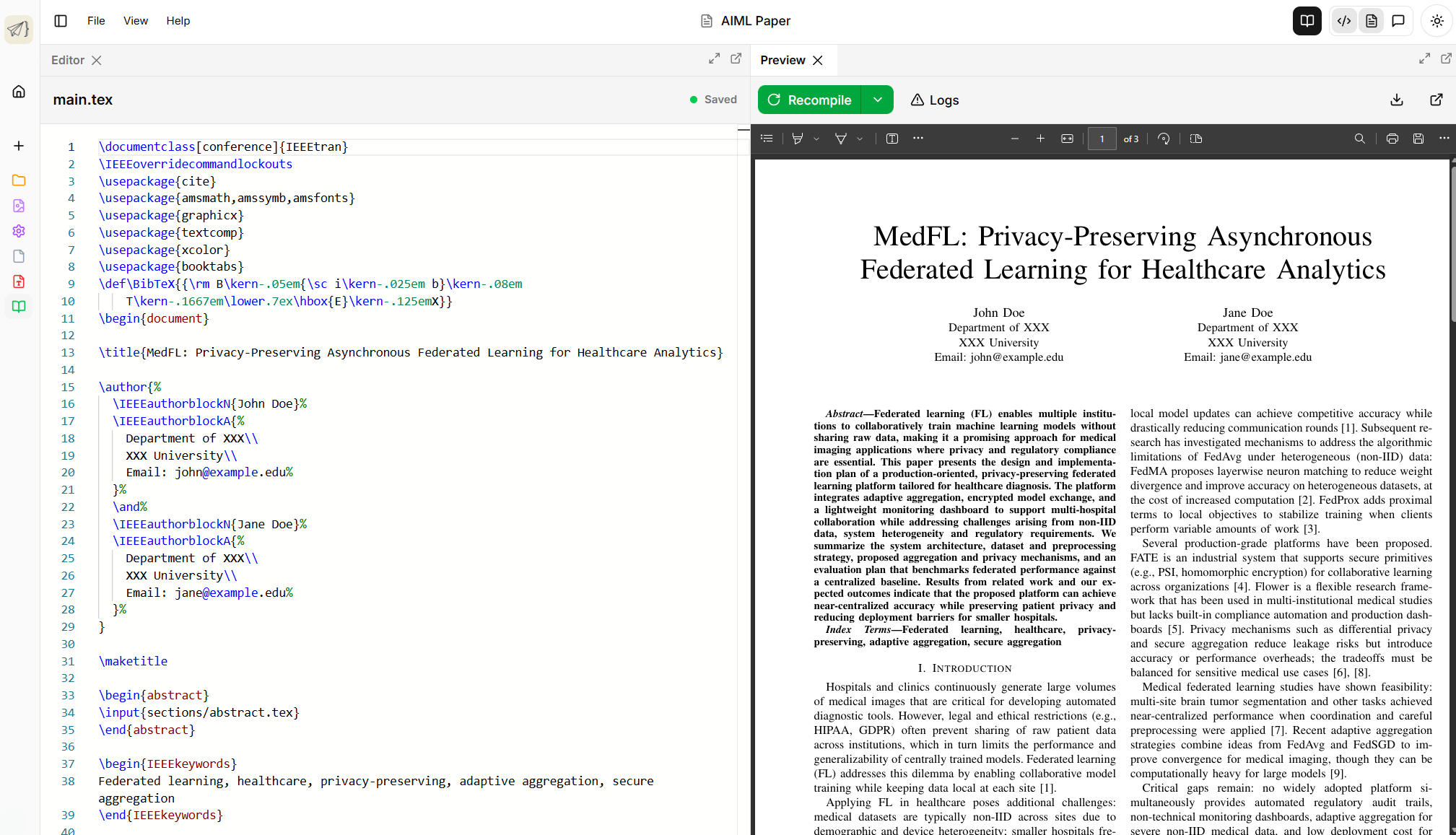 Excellent for proofreading and detailed document review in bright environments.