Project Management
Organize, import, and export your LaTeX projects
PaperPilot provides comprehensive tools for managing complex LaTeX projects with multiple files, images, and resources.
Project Structure
A typical PaperPilot project looks like:
my-research-paper/
├── main.tex              # Primary document
├── references.bib        # Bibliography
├── chapters/
│   ├── introduction.tex
│   ├── methods.tex
│   ├── results.tex
│   └── conclusion.tex
├── figures/
│   ├── diagram.pdf
│   ├── chart.png
│   └── photo.jpg
├── tables/
│   └── results-table.tex
└── styles/
    └── custom-commands.sty
Key Features
File Explorer
Create, organize, and navigate your project files
Import & Export
Bring in existing projects or export your work
Dashboard Overview
Your project dashboard shows all your projects:
| Feature | Description |
|---|---|
| Project Cards | Visual preview with last modified date |
| Quick Actions | Open, rename, duplicate, or delete |
| Search | Find projects by name |
| Sort | Order by name, date, or recently opened |
Project Actions
Rename Project
- Click the project card menu (⋯)
- Select Rename
- Enter the new name
- Press Enter or click Save
Duplicate Project
Create a copy of an existing project:
- Click the project card menu (⋯)
- Select Duplicate
- A new project is created with "(Copy)" appended
Duplicating is great for creating variations of a document or starting a new version while keeping the original.
Delete Project
Deletion is permanent. Make sure to export important projects before deleting.
- Click the project card menu (⋯)
- Select Delete
- Confirm in the dialog
Workspace Organization
Open Multiple Files
Work with several files simultaneously:
- Click a file to open it in a new tab
- Drag tabs to reorder or split view
- Right-click tabs for close options
Split View
View multiple files side by side:
- Drag a tab toward the edge of the editor
- Release when you see the split indicator
- Adjust the divider to resize panels
File Associations
PaperPilot recognizes common LaTeX files:
| Extension | Type | Editor Support |
|---|---|---|
.tex | LaTeX source | Full editing |
.bib | Bibliography | BibTeX highlighting |
.sty | Style file | Package editing |
.cls | Class file | Class editing |
.png, .jpg, .pdf | Images | Preview |
.md | Markdown | Markdown support |
Cloud Storage
All projects are stored securely in the cloud:
- Auto-save — Changes save automatically
- Sync — Access from any device
- Versioning — Previous versions can be restored (contact support)
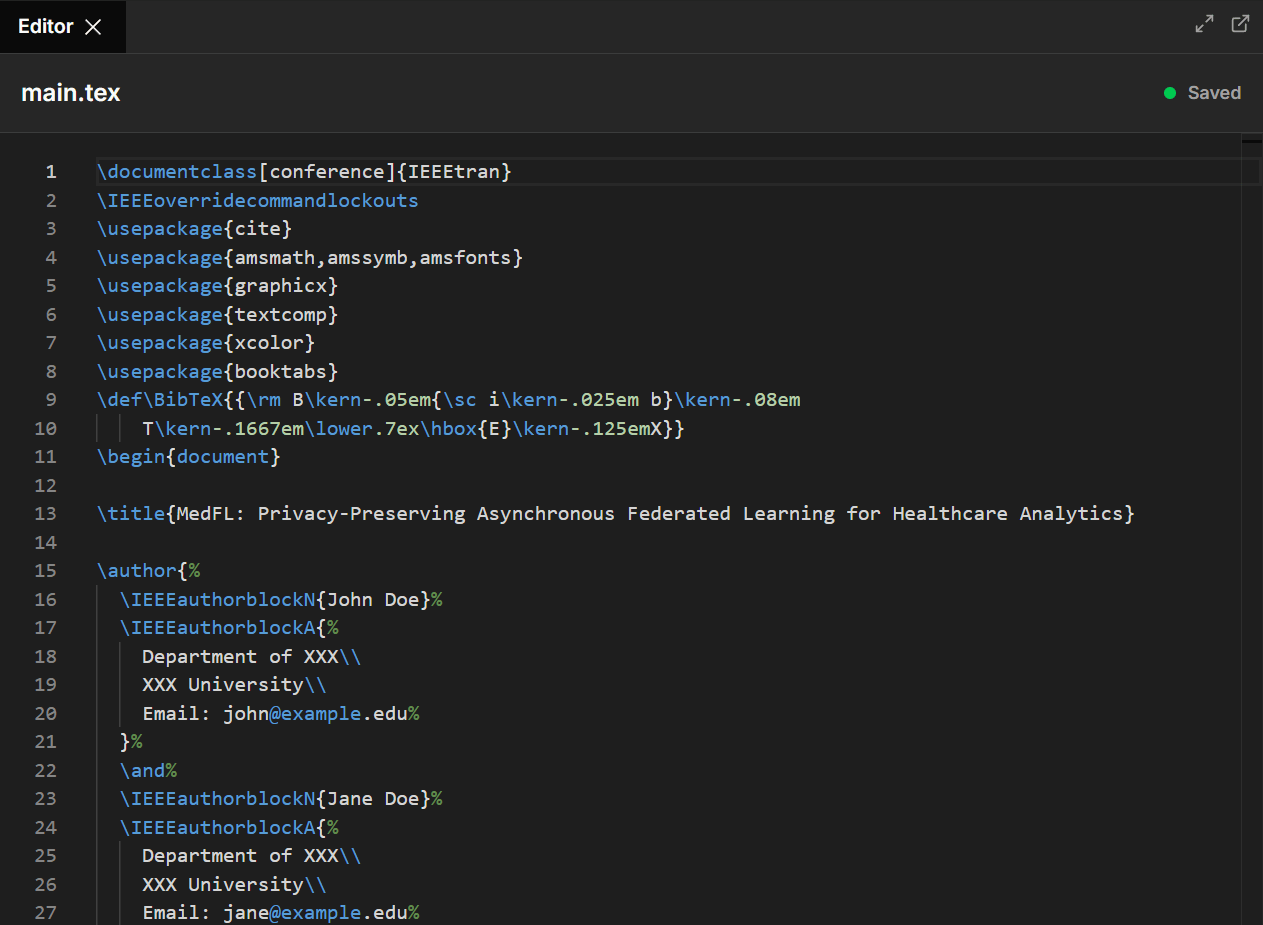
The sync indicator in the header shows your save status. Green means all changes are saved.