Creating Projects
Learn the different ways to create and initialize projects in PaperPilot
PaperPilot offers multiple ways to start a new project, depending on your needs.
From a Template
Templates are the fastest way to get started with a properly structured document.
Browse Templates
From your projects dashboard, click New Project and select a template category.
Choose a Template
Browse through categories like:
- Academic Papers → IEEE, ACM, Springer formats
- Projects & Reports → University-specific formats
- Resumes & CVs → Professional resume templates
Preview and Select
Click on any template to see a preview and when ready, select it.
Name Your Project
Give your project a meaningful name and click Create Project.
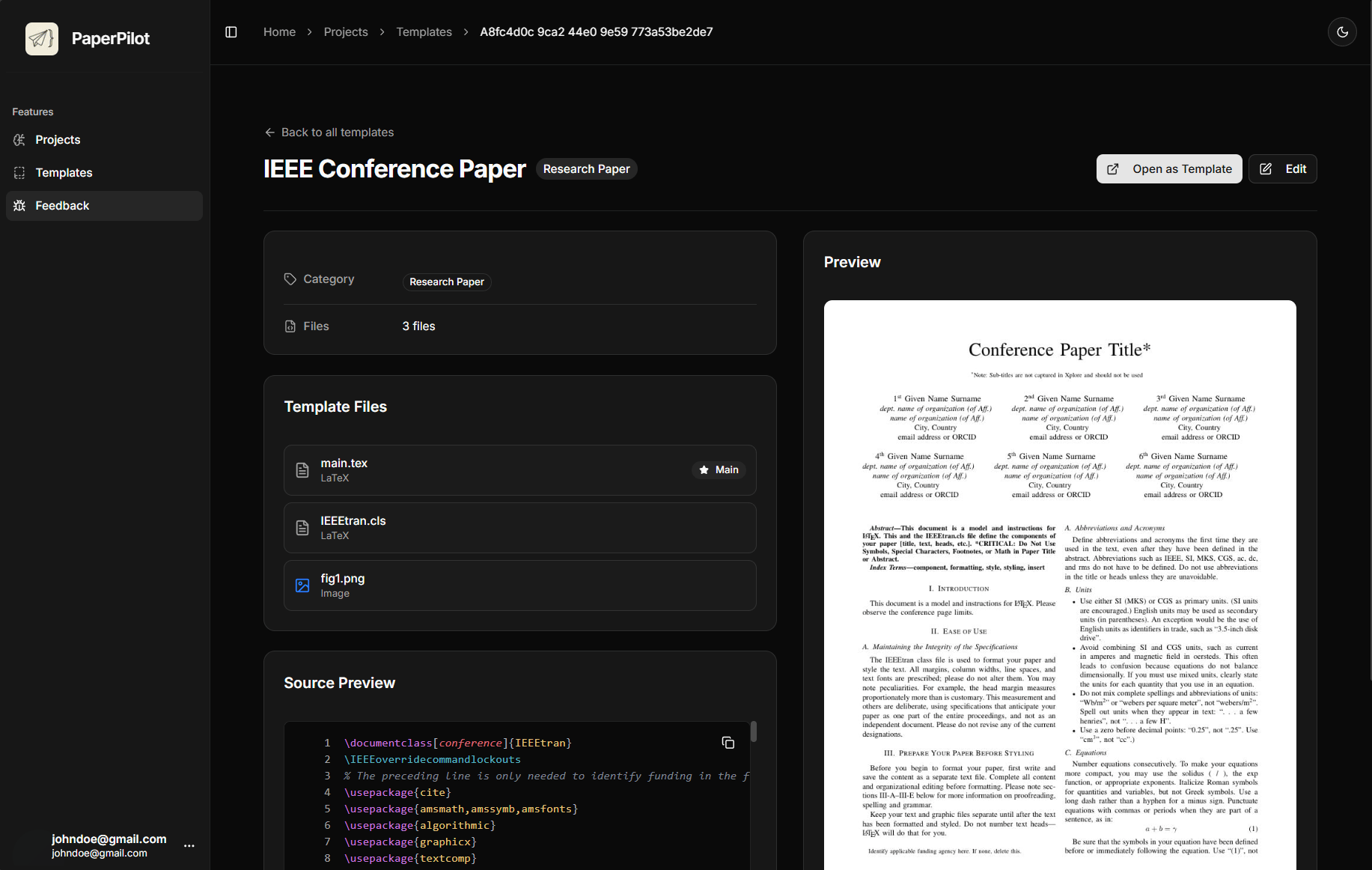
Templates come pre-configured with the correct document class, packages, and folder structure. You can always customize them later!
From Scratch
For experienced LaTeX users who want full control:
Create Blank Project
Click New Project → Blank Project.
Set Up Your Structure
You'll start with an empty main.tex file. Create your own folder structure using the file explorer.
Add Packages
Include any LaTeX packages you need in your preamble. A basic document looks like:
\documentclass{article}
\usepackage{graphicx}
\usepackage{amsmath}
\usepackage{hyperref}

\begin{document}
Your content here...
\end{document}
Import Existing Project
Already have a LaTeX project? Import it easily:
Import from ZIP
- Click New Project → Import
- Select your
.zipfile containing your LaTeX project - PaperPilot will extract and organize all files automatically
Your ZIP should contain a valid LaTeX project with at least one .tex file.
Upload Individual Files
- Create a new blank project
- Use the Import button in the file explorer
- Select multiple files to upload at once
Great for adding images, bibliography files, or supplementary materials.
Upload Entire Folder
- Create a new blank project
- Use the Import Folder option
- Select a folder from your computer
The entire folder structure will be preserved!