PDF Preview
Live-updating PDF preview with sync scrolling
PaperPilot compiles your LaTeX in real-time and displays the PDF right next to your editor.
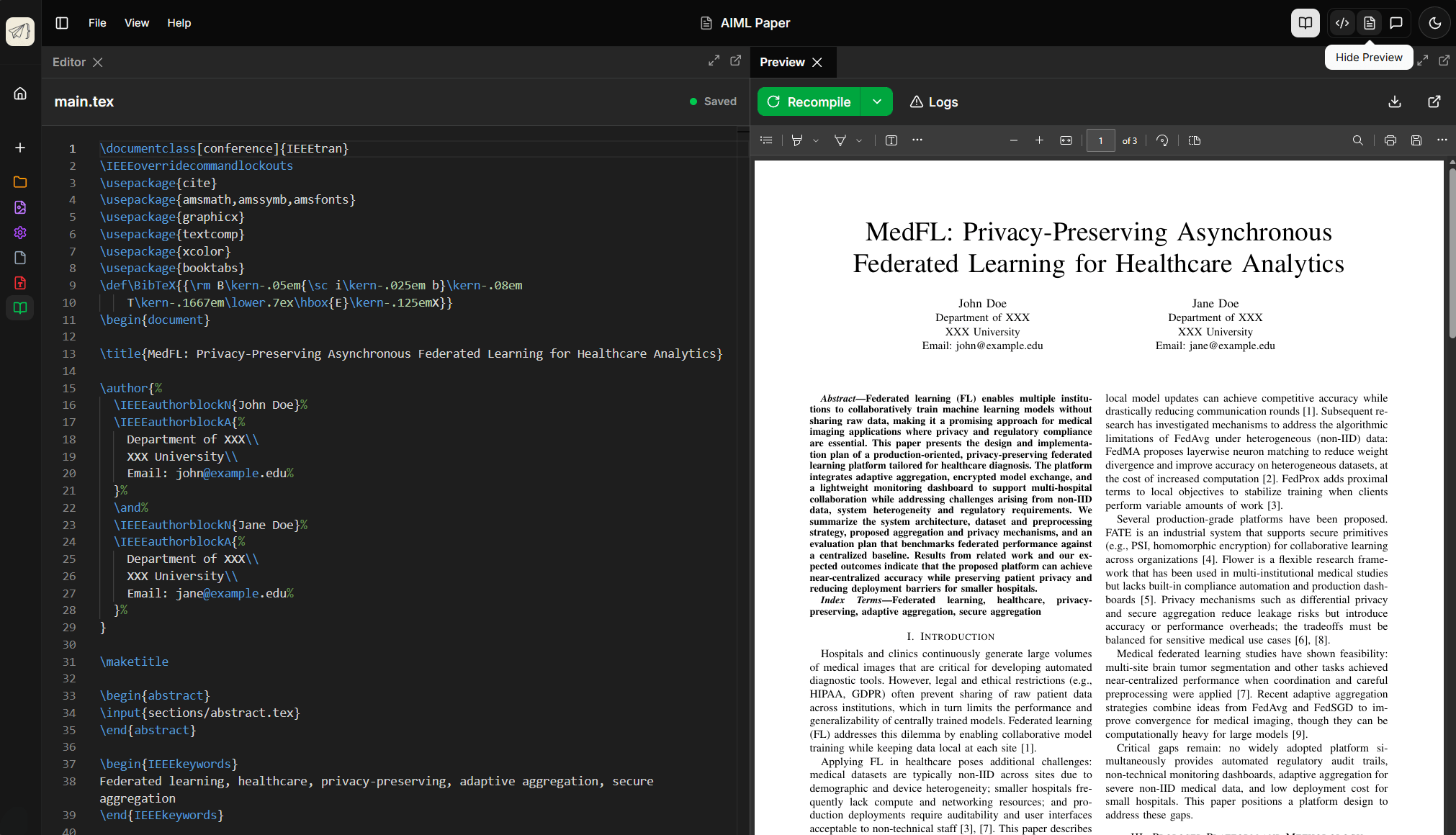
How It Works
Auto-Compilation
As you type, PaperPilot watches for changes and queues a compilation build.
Cloud Compilation
Your document is compiled on our servers using a full TeX Live installation.
Instant Preview
The compiled PDF streams back and updates instantly in the preview panel.
Compilation is debounced - the system waits for a pause in typing before compiling to avoid excessive builds.
Preview Controls
Zoom
Control the zoom level for comfortable reading:
| Control | Action |
|---|---|
+ / - buttons | Zoom in/out by 10% |
| Zoom dropdown | Select preset levels (50%, 75%, 100%, etc.) |
Ctrl+Scroll | Zoom with mouse wheel |
| Fit to Width | Automatically fit page width |
| Fit to Page | Show entire page |
Page Navigation
| Control | Action |
|---|---|
| Scroll | Move through pages |
| Page input | Jump to specific page number |
↑ / ↓ arrows | Previous/next page |
| Thumbnail sidebar | Click to jump (if enabled) |
Sync Scrolling
The editor and preview stay synchronized:
- Editor -> Preview: Click in the editor to scroll preview to that location
- Preview -> Editor: Double-click in PDF to jump to source
- Toggle: Enable/disable sync in preview settings
Sync scrolling works best with \synctex enabled (on by default). If jumps seem off, try
recompiling.
Compilation Options
Compiler Selection
Choose the LaTeX engine that matches your document:
pdfLaTeX (Default)
- Fastest compilation
- Great for standard documents
- Limited Unicode support
- Standard font handling
Best for: Most academic papers, templates, quick previews
XeLaTeX
- Full Unicode support
- System font access
- Slower than pdfLaTeX
Best for: Documents with non-Latin scripts, custom fonts
\usepackage{fontspec}
\setmainfont{Times New Roman}
LuaLaTeX
- Full Unicode support
- Lua scripting capabilities
- System font access
- Some unique packages require it
Best for: Complex typesetting, Lua-enhanced packages
Draft Mode
Enable draft mode for faster compilation during editing:
- Skips images - Uses placeholders instead of loading full images
- Faster builds - Significantly reduced compile time
- Visual marker - "DRAFT" watermark on pages
Draft mode is great for writing. Switch to full mode before final export.
Troubleshooting
Compilation Errors
When compilation fails:
- Check the log - Click the error indicator to view the full log
- Find the line - Click on errors to jump to the source location
- Ask AI - The Writing Agent can diagnose and fix common errors
Common Issues
| Error | Solution |
|---|---|
| Missing package | Add \usepackage{package} to preamble |
| Undefined control sequence | Check command spelling or add required package |
Missing $ | Add missing math delimiters |
| File not found | Check image paths and file names |
| Overfull hbox | Adjust text or use \sloppy |
Preview Not Updating
If the preview seems stuck:
- Check for errors - Compilation might have failed silently
- Force refresh - Click the refresh button in preview toolbar
- Recompile - Press
F5to trigger manual compilation - Clear cache - Use settings menu to clear compilation cache
PDF Viewer Options
Built-in Viewer
The default PDF viewer provides:
- Fast rendering
- Sync scrolling support
- Text selection
- Search within PDF
External Viewer
You can also download the PDF and open in an external viewer:
- Click the download button in the preview header
- Open with your preferred PDF reader
- Re-download after changes
External viewers are helpful for very long documents or when you need advanced annotation features.
Light and Dark Themes
The PDF preview respects your theme setting:
The UI is dark but PDF
content renders normally (white background).
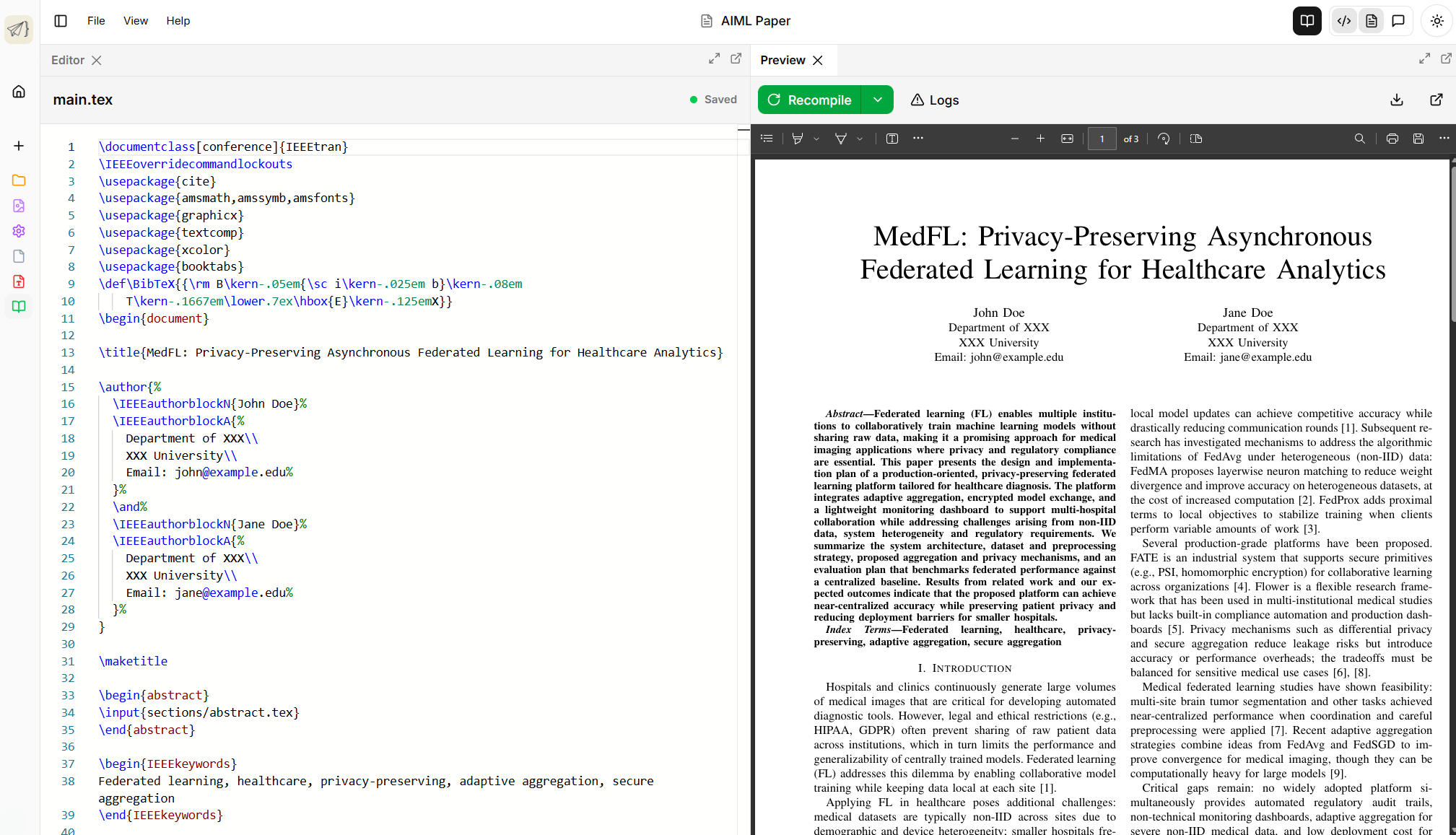 Light interface with
standard PDF appearance.
Light interface with
standard PDF appearance.