Inline AI (Ctrl+K)
Refactor, rewrite, and generate code without leaving the editor
The inline AI feature lets you edit code using natural language, right where you're working. No need to switch to the chat panel for quick edits.
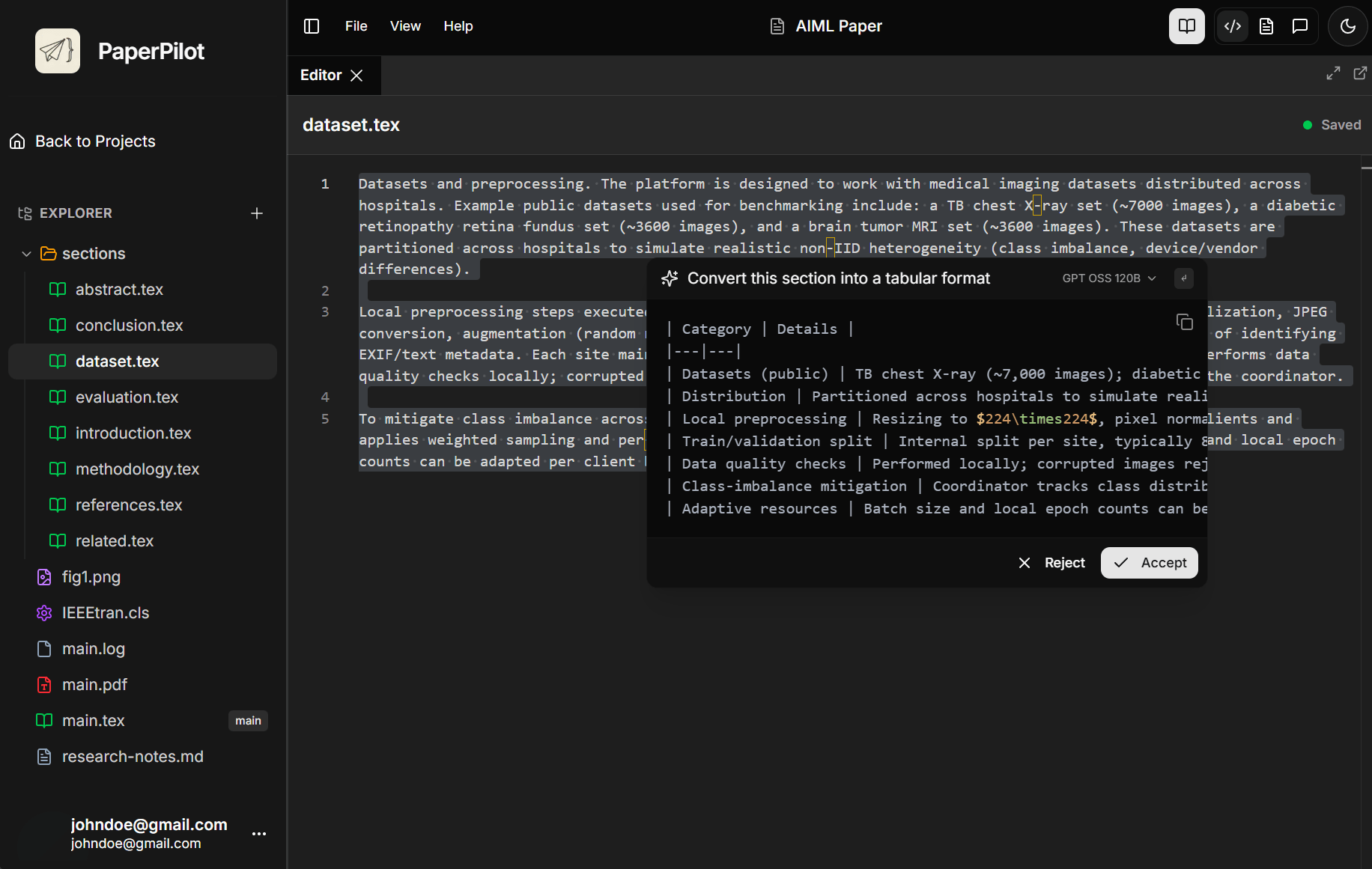
How to Use
Select Code (Optional)
Highlight the text you want to modify, or place your cursor where you want to generate new content.
Open Inline AI
Press Ctrl+K (or Cmd+K on Mac) to open the inline prompt.
Describe Your Change
Type what you want to do in natural language, for example: "Convert this itemize list to a numbered enumerate list"
Review Changes
The AI shows a preview of the changes with syntax highlighting.
Accept or Reject
- Press Enter or click Apply to accept
- Press Escape to cancel
- Type more instructions to refine
Common Use Cases
Refactoring
Make text more concise: "Make this paragraph more concise"
Improve readability: "Split this long sentence into shorter ones"
Change tone: "Make this more formal"
Convert list types: "Convert itemize to enumerate"
Reorganize sections: "Split this into two paragraphs at the topic change"
Add structure: "Add subsection headings to organize this content"
Format changes: "Convert this table to use booktabs style"
Math formatting: "Convert inline math to display equations"
Reference style: "Change natbib to biblatex citation style"
Generation
Generate new content at your cursor position:
- "Write a figure caption describing a neural network architecture diagram"
- "Add a transition sentence connecting to the next paragraph"
- "Generate a proof skeleton for this theorem"
Quick Fixes
Common LaTeX corrections:
| Issue | Prompt |
|---|---|
| Escaping special characters | Fix special characters for LaTeX |
| Math mode errors | Fix math mode syntax |
| Table alignment | Fix table column alignment |
| Missing packages | Add required packages for this code |
Features
Syntax-Aware Preview
The preview shows your changes with proper LaTeX highlighting:
- Green - Added content
- Red - Removed content
- Yellow - Modified content
Model Selection
Click the model indicator in the prompt to switch AI models:
- Use fast models (Groq, Gemini Flash) for quick edits
- Use powerful models (GPT-4o, Claude) for complex refactoring
Fast models work great for simple changes like formatting or conversions. Save powerful models for rewriting or generating substantial content.
Move to File
You can also move selected code to a new file:
Select Code
Select the code you want to extract into a new file.
Open Move to File
Press Ctrl+K and click the Move to File option.
Enter Filename
Enter the target filename (e.g., chapters/methods.tex).
Auto-Input
The code is moved to the new file and an \input{} statement is added automatically to your current file.
Best Practices
Be Specific
Instead of "improve this," try "make this more concise while keeping all the technical details."
Small Changes
The inline AI works best for focused edits. For major rewrites, use the chat panel where you can iterate more easily.
Review Carefully
Always review the suggested changes before applying. The AI might interpret your instruction differently than expected.
Keyboard Shortcuts
| Shortcut | Action |
|---|---|
Ctrl+K | Open inline AI prompt |
Enter | Apply changes |
Escape | Cancel and close |
Comparison with Chat
| Feature | Inline AI (Ctrl+K) | Chat Panel |
|---|---|---|
| Quick edits | ✅ Best | ⭐ Good |
| Complex rewriting | ⭐ Good | ✅ Best |
| Multi-file changes | ❌ No | ✅ Yes |
| Research tasks | ❌ No | ✅ Yes |
| Conversation context | ❌ No | ✅ Yes |
Use inline AI for quick, focused edits. Use the chat panel when you need to discuss, iterate, or make changes across multiple files.