Import & Export
Bring projects into PaperPilot and export your finished work
Move your LaTeX projects in and out of PaperPilot with flexible import and export options.
Importing Projects
From ZIP File
The easiest way to import an existing project:
Create New Project
From dashboard, click New Project → Import.
Select ZIP File
Choose your .zip file containing the LaTeX project.
Automatic Extraction
PaperPilot extracts all files preserving folder structure.
Review Structure
Check the file explorer to verify everything imported correctly.
ZIP import works with exports from Overleaf, local editors, and other LaTeX platforms.
Upload Individual Files
Add files to an existing project:
- Click the + button in file explorer 2. Select Upload Files 3. Choose your file 4. It's added to the current folder
- Click + → Upload Files 2. Select multiple files (Ctrl/Cmd + click) 3. All files upload to current folder Or drag multiple files directly into the file explorer.
- Click + → Upload Folder 2. Select a folder from your computer 3. Entire folder structure is preserved Great for importing figure directories or chapter collections.
Drag and Drop
Simply drag files or folders from your computer onto the file explorer:
- Drop on root to add to project root
- Drop on a folder to add inside that folder
- Drop multiple items at once
Supported File Types
PaperPilot accepts all common LaTeX-related files:
| Type | Extensions |
|---|---|
| LaTeX | .tex, .ltx |
| Bibliography | .bib |
| Styles | .sty, .cls, .bst |
| Images | .png, .jpg, .jpeg, .pdf, .eps, .svg |
| Data | .csv, .dat |
| Text | .txt, .md |
Binary files like images are stored but not editable in the browser. You can preview them.
Exporting Projects
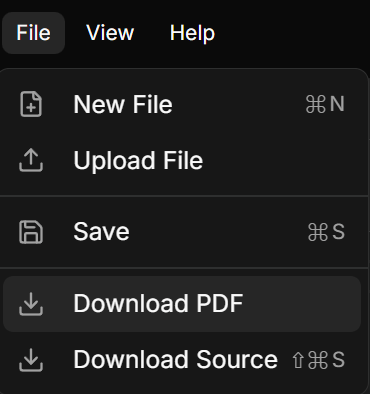
Download PDF
Get the compiled PDF of your document:
Ensure Compilation
Make sure your document compiles successfully (check for errors).
Click Download
Click the Download PDF button in the header (or preview panel).
Save File
Your browser downloads the compiled PDF.
Download Project ZIP
Export your entire project including all source files:
Open Export Menu
Click File → Export or the export button in header.
Select ZIP Export
Choose Download as ZIP.
Download
A ZIP file containing all project files downloads.
The ZIP includes:
- All
.texsource files - Bibliography files
- Images and figures
- Style files
- Any other project files
What's Included
| Included | Not Included |
|---|---|
| ✅ All source files | ❌ Compiled PDF (download separately) |
| ✅ Images & figures | ❌ Log files |
| ✅ Style files | ❌ Auxiliary files (.aux, .log) |
| ✅ Bibliography | ❌ Cache files |
| ✅ Folder structure |
Migration Guide
From Overleaf
Export from Overleaf
In Overleaf, go to Menu → Download Source.
Import to PaperPilot
Use New Project → Import with the downloaded ZIP.
Verify Compilation
Open the project and confirm it compiles correctly.
From Local Editor
Create ZIP
Zip your project folder (right-click → Compress on Mac, Send to → Compressed folder on Windows).
Import
Use New Project → Import.
Set Main File
If needed, go to settings and specify which file is the main document.
To Local Editor
Export ZIP
Download your project as ZIP from PaperPilot.
Extract
Unzip to your local folder.
Open in Editor
Open the folder in VS Code, TeXstudio, or your preferred editor.
Backup Recommendations
Regular Backups
While PaperPilot saves automatically to the cloud, we recommend periodic exports for redundancy.
Backup Strategy
- Weekly — Export ZIP of active projects
- Before major changes — Create a backup before restructuring
- On completion — Archive final version with compiled PDF
Version Control
For advanced version control, you can:
- Export your project as ZIP
- Initialize a Git repository locally
- Commit changes periodically
- Push to GitHub, GitLab, or Bitbucket
Git integration is coming soon! You'll be able to connect repositories directly.